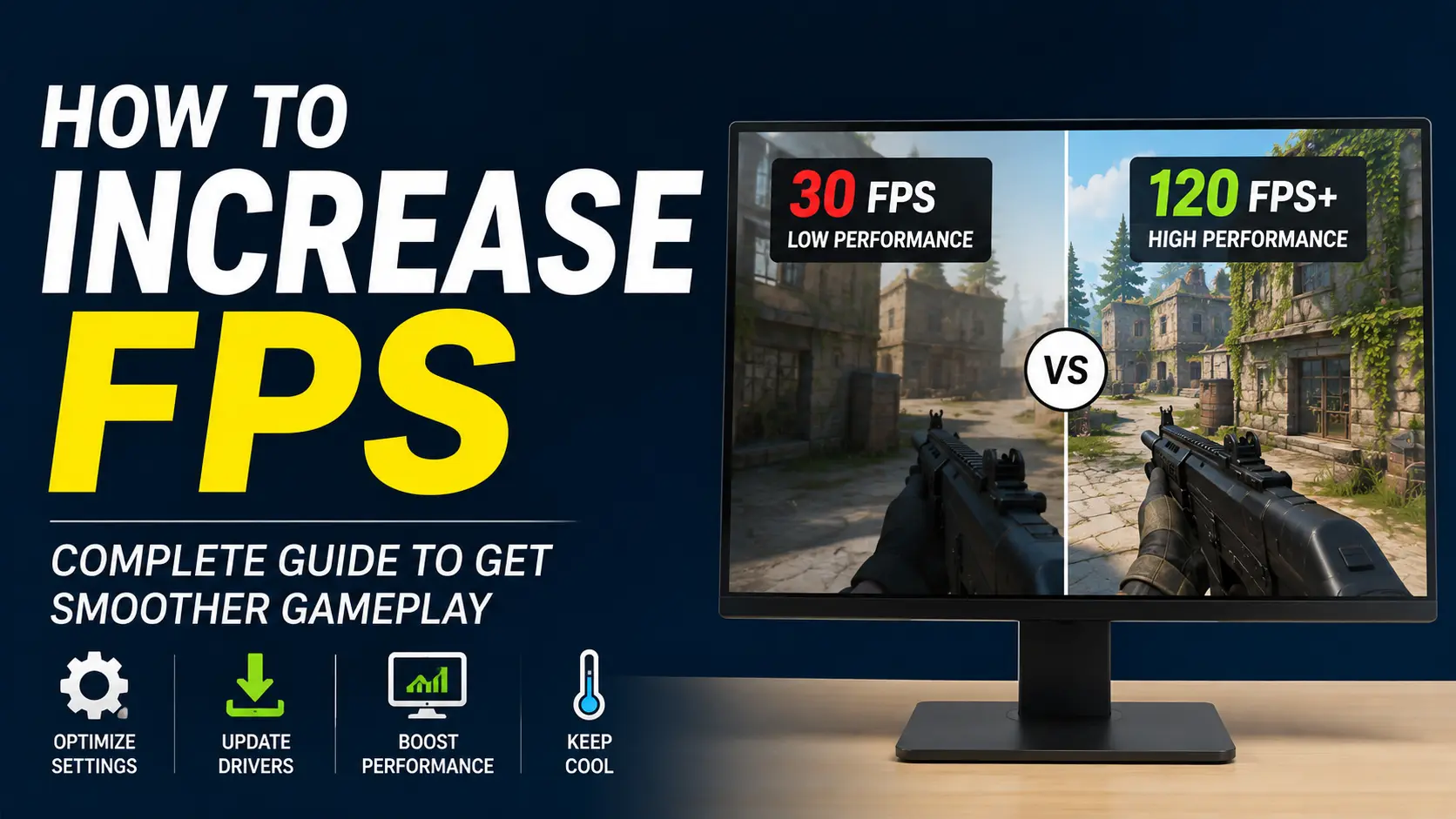
You can increase FPS by lowering demanding graphics settings, updating GPU drivers and games, closing unnecessary background apps, and improving overall system performance. Reducing resolution, ray tracing, shadows, reflections, and other demanding effects can lower GPU workload and improve frame rates. Technologies such as DLSS, FSR, and XeSS can also increase performance while preserving much of the image quality. Keeping your system cool, using performance power settings, and disabling unnecessary overlays may help maintain stable FPS. If problems persist, check CPU, GPU, RAM, VRAM, temperatures, and frame times to identify the underlying bottleneck.
If your games feel choppy, unresponsive, or suffer from sudden frame drops, learning how to increase FPS can make a noticeable difference. Frames per second determine how smoothly your computer renders gameplay. Fortunately, you do not always need an expensive hardware update to improve gaming performance. Lowering demanding graphics settings, reducing resolution, enabling DLSS, FSR, or XeSS, updating graphics drivers, closing background applications, and optimizing Windows settings can often increase FPS.
Gaming laptops may also benefit from using performance modes, connecting the charger, selecting the dedicated GPU, and improving cooling. However, the right solution depends on whether your GPU, CPU, RAM, VRAM, temperatures, or another component is limiting performance. This guide explains practical ways to increase FPS, fix stuttering, identify bottlenecks, and achieve smoother gameplay.
What Is FPS?
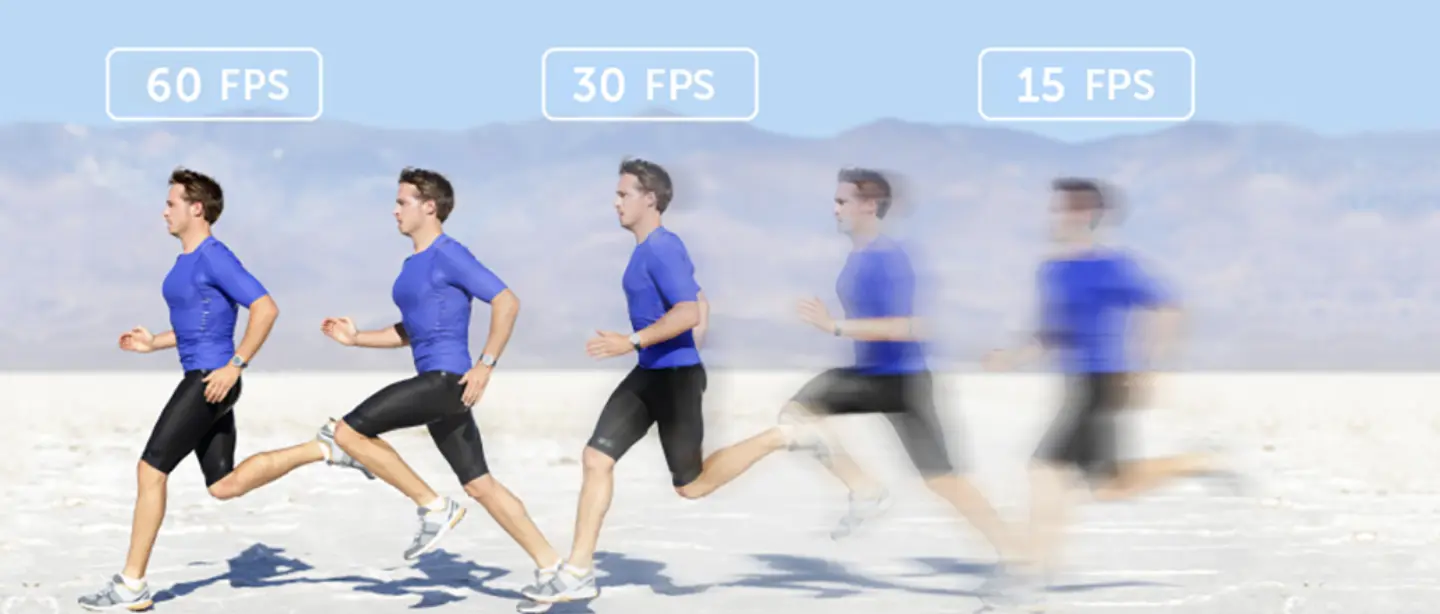
FPS, or frames per second, measures how many individual frames your computer or gaming console renders every second during gameplay. Each frame is a still image, and displaying these images rapidly creates the smooth motion you see on screen. A higher FPS generally makes games feel smoother, more responsive, and easier to control, especially in fast-paced shooters, racing games, and competitive titles. For example, 60 FPS usually feels noticeably smoother than 30 FPS, while 120 FPS or higher can provide greater responsiveness on compatible high-refresh-rate displays.
Higher FPS does not automatically improve your experience if your monitor cannot display those additional frames. Consistent FPS also matters because sudden drops and uneven frame times can cause noticeable stuttering, even when average FPS appears high.
How to Increase FPS Without Upgrading Your PC
You can often increase FPS without buying new hardware by optimizing game settings, Windows 10 or Windows 11 performance options, drivers, background processes, and system temperatures. These adjustments can reduce unnecessary workload and improve gaming performance.
1. Lower Your In-Game Resolution
Lowering your in-game resolution reduces the number of pixels your GPU must render, which can increase FPS when your graphics card is the bottleneck. Try reducing resolution gradually while maintaining acceptable image quality.
2. Reduce High-Impact Graphics in-Game Settings
Some graphics settings place significantly more load on your GPU and can reduce frame rates. Lower the most demanding options first instead of immediately setting every game setting to Low.
Shadows
Lower shadow quality can provide a noticeable FPS boost because rendering detailed shadows requires additional GPU resources. Try Medium or Low shadows if you need higher frame rates.
Ray Tracing
Ray tracing can significantly increase GPU workload by creating realistic lighting, reflections, and shadows. Turning ray tracing off or lowering its quality can substantially improve FPS in demanding games.
Reflections
High-quality reflections require additional rendering work and can reduce gaming performance. Lowering reflection quality can increase FPS while having a smaller visual impact during fast-paced gameplay.
Ambient Occlusion
Ambient occlusion improves depth by adding realistic shading around objects and surfaces. Reducing or disabling this setting can free GPU resources and provide additional FPS when performance is limited.
Volumetric Effects
Volumetric lighting, fog, smoke, and similar effects can consume considerable GPU resources. Lowering volumetric quality can improve frame rates, particularly in visually demanding scenes.
Anti-Aliasing
Anti-aliasing smooths jagged edges but can affect performance depending on the technique used. Lowering its quality or choosing a less demanding option can help increase FPS.
View Distance
View distance determines how far the game renders objects and environmental details. Reducing it can lower CPU and GPU workload, especially in open-world games with large environments.
Texture Quality
Texture quality primarily affects VRAM usage and visual detail. Lower textures when your graphics card has limited VRAM, but avoid reducing them unnecessarily if VRAM is not a bottleneck.
Motion Blur
Motion blur creates a cinematic effect by blurring objects during movement. Disabling it can slightly reduce GPU workload while making fast-moving gameplay appear clearer.
3. Enable DLSS, FSR, or XeSS
DLSS, FSR, and XeSS use upscaling techniques to render games internally at a lower resolution before producing an output closer to your display resolution. Using Quality or Balanced mode can improve FPS while preserving good image quality.
4. Enable Frame Generation When Supported
Frame generation creates additional frames between traditionally rendered frames, potentially increasing displayed FPS in supported games and hardware. It can improve perceived smoothness, although generated frames are not equivalent to traditionally rendered frames and may affect latency.
5. Update Your Graphics Drivers
Updating your NVIDIA, AMD, or Intel graphics drivers can improve game compatibility, fix performance issues, and provide optimizations for newer games. Install drivers through the official software or support tools provided by your GPU manufacturer.
6. Update Your Game
Game developers regularly release patches that fix bugs and improve performance or stability. Keeping your games updated ensures you receive important optimization improvements and compatibility fixes that may help resolve low FPS.
7. Close Unnecessary Background Apps
Background applications consume CPU, RAM, and other system resources that games may need for consistent performance. Use Task Manager to close unnecessary programs, especially resource-intensive applications running while you play.
8. Enable Windows Game Mode
Windows Game Mode is designed to prioritize gaming-related processes and manage system resources during gameplay. Enabling it may help improve gaming performance, although the actual FPS improvement varies between systems and games.
9. Use Windows Best Performance Mode
Windows power settings can affect CPU and GPU performance, particularly on laptops and systems using balanced or power-saving modes. Selecting Best Performance can help your PC prioritize performance while gaming.
10. Check Your GPU Power Settings
Check your graphics card’s power management settings to ensure the GPU is not unnecessarily prioritizing power savings during demanding games. Performance-focused settings can help maintain appropriate GPU clock speeds when needed.
11. Keep Your Gaming PC Cool
High CPU or GPU temperatures can trigger thermal throttling, reducing clock speeds and causing FPS drops or stuttering. Keep vents clear, maintain good airflow, clean accumulated dust, and monitor temperatures during demanding gaming sessions.
12. Verify or Repair Game Files
Corrupted or missing game files can sometimes cause unusual performance problems, crashes, or stuttering. Use your game launcher’s Verify or Repair feature to check the installation and replace damaged files.
13. Disable Unnecessary Overlays
Gaming and communication overlays can consume system resources and occasionally interfere with game performance. Disable unnecessary overlays from applications such as Discord, Xbox Game Bar, or GPU software if they are not needed while gaming.
How to Optimize FPS on a Gaming Laptop
Gaming laptops can deliver lower FPS when power limits, battery settings, GPU selection, or high temperatures restrict performance. Optimizing these areas can help increase FPS, reduce stuttering, and maintain more consistent gaming performance without immediately upgrading your laptop hardware.
1. Plug in Your Charger
Gaming laptops often reduce CPU and GPU performance when running on battery power. Connect your charger before gaming to provide the system with sufficient power for demanding games and maintain higher, more stable FPS.
2. Enable the Laptop’s Performance Mode
Use your laptop manufacturer’s performance or gaming mode when available. This setting can increase power limits, adjust fan speeds, and prioritize CPU and GPU performance, potentially improving FPS during demanding gaming sessions.
3. Make Sure the Game Uses the Dedicated GPU
Some gaming laptops include both integrated and dedicated graphics. Check Windows graphics settings or your GPU software to ensure demanding games use the dedicated NVIDIA or AMD GPU instead of integrated graphics.
4. Improve Airflow and Temperatures
Poor airflow can cause your laptop to overheat and thermally throttle, reducing CPU and GPU clock speeds. Keep ventilation areas unobstructed, clean dust from vents, and use a suitable cooling surface to maintain stable temperatures.
5. Avoid Battery-Saving Modes While Gaming
Battery-saving modes can limit processor performance, GPU power, and background activity to extend battery life. Switch to a performance-focused power mode while gaming, then return to battery-saving settings when you are finished.
How to Fix Sudden FPS Drops and Stuttering
Sudden FPS drops and stuttering can often be fixed by checking temperatures, hardware utilization, memory usage, drivers, game files, updates, and background processes. Work through these checks one by one to identify the cause and restore smoother, more consistent gameplay.
Check Temperatures
Monitor your CPU and GPU temperatures while gaming, then improve airflow, clean blocked vents, or increase fan speeds if overheating is causing FPS drops.
Check GPU and CPU Utilization
Monitor CPU and GPU usage during FPS drops; if one component is consistently limiting performance, lower the settings that increase its workload or address the hardware bottleneck.
Check VRAM and RAM Usage
Check VRAM and RAM usage while gaming, then lower texture quality, close unnecessary applications, or improve memory if available capacity is consistently insufficient.
Update Drivers
Update your graphics driver through NVIDIA, AMD, or Intel’s official software, especially if FPS problems started after installing a new game or Windows update.
Verify Game Files
Use your launcher’s Verify or Repair option to scan for corrupted or missing files and replace them, which can resolve unexplained stuttering or performance problems.
Check Recent Game or Windows Updates
If FPS drops started after an update, check the game’s patch notes and community reports, install available fixes, or temporarily test whether the update caused the problem.
Check Background Applications
Open Task Manager and close unnecessary CPU-, RAM-, or GPU-intensive applications, including unused launchers, browsers, recording software, and overlays running during gameplay.
Check for Thermal Throttling
If temperatures become excessive and clock speeds fall, improve cooling by cleaning dust, keeping vents unobstructed, improving airflow, or reducing demanding settings to prevent thermal throttling.
Check 1% Low FPS and Frame Times
Use an FPS monitoring tool to check 1% lows and frame times, then adjust settings or investigate the component responsible for inconsistent frame delivery and stuttering.
How to Increase FPS Without Making Games Look Bad
You do not always need to lower every graphics setting to increase FPS. Start with settings that have a high performance cost but a smaller visual impact, such as ray tracing, shadows, reflections, and volumetric effects. Using DLSS, FSR, or XeSS can also improve frame rates while preserving much of the game’s visual quality.
How to Tell What Is Limiting Your FPS
Identifying the component limiting your FPS helps you make the right performance changes instead of lowering every setting unnecessarily. Monitor CPU, GPU, RAM, VRAM, temperatures, clock speeds, and frame times while gaming to find the actual bottleneck.
How to Identify a GPU Bottleneck
If your GPU is consistently working near full utilization while lowering graphics settings or resolution increases FPS, your graphics card is likely limiting performance.
How to Identify a CPU Bottleneck
If lowering resolution or GPU-heavy settings produces little FPS improvement while CPU usage remains high, your processor may be limiting gaming performance.
How to Identify a RAM or VRAM Limitation
Check RAM and VRAM usage during gameplay; if available memory becomes insufficient, close background applications or lower texture quality and other memory-intensive settings.
What to Monitor While Gaming
Use a performance monitoring tool to track FPS, 1% lows, frame times, CPU and GPU utilization, RAM and VRAM usage, temperatures, and clock speeds while playing.
Advanced Ways to Increase FPS
If software and graphics optimizations cannot deliver your target frame rate, hardware upgrades may provide a larger performance improvement. Choose upgrades based on the component causing the bottleneck rather than replacing hardware without identifying the limitation.
Upgrade Your GPU
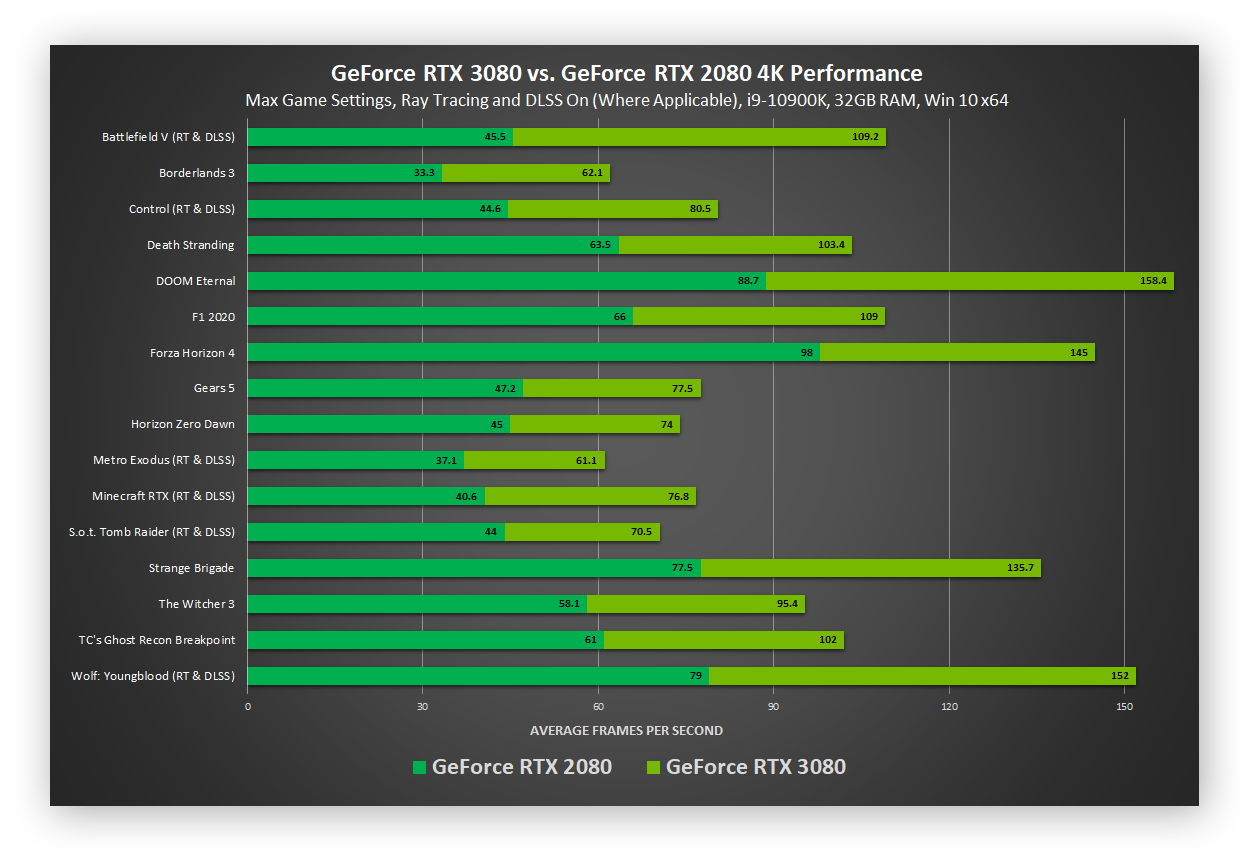
Upgrading your GPU can significantly increase FPS when the graphics card is the primary bottleneck, especially at higher resolutions and demanding graphics settings.
Upgrade Your CPU
A faster CPU can improve FPS when games are processor-limited, particularly in CPU-heavy titles, open-world games, simulations, and high-refresh-rate gaming.
Upgrade Your RAM
Adding or updating RAM can reduce stuttering and improve gaming performance when your system frequently runs low on available memory during gameplay.
Upgrade From an HDD to an SSD
Moving games from an HDD to an SSD can significantly improve loading times and asset streaming, although it usually does not provide a major increase in average FPS.
Consider GPU or CPU Overclocking
Overclocking can increase CPU or GPU performance when supported, but it requires careful temperature and stability monitoring and may increase power consumption and hardware stress.
FPS vs Refresh Rate vs Ping: What’s the Difference?
FPS, refresh rate, and ping affect different parts of gaming: FPS is generated by your hardware, refresh rate is limited by your display, and ping depends on your internet connection and server distance.
| Factor | FPS | Refresh Rate | Ping |
| What it means | Frames your PC or console renders per second | Times your monitor refreshes the screen per second | Time data takes to travel between your device and game server |
| Measured in | FPS | Hertz (Hz) | Milliseconds (ms) |
| Controlled by | GPU, CPU, RAM, game settings | Monitor/display | Internet connection, network conditions, server distance |
| Mainly affects | Visual smoothness and responsiveness | How smoothly your display can show motion | Online response delay |
| Higher is better? | Generally, yes | Generally, yes | No—lower is better |
| Example | 120 FPS = 120 rendered frames/second | 144Hz = display refreshes 144 times/second | 20ms = lower network delay than 100ms |
| Can it cause stuttering? | Yes, especially with unstable FPS or frame times | Usually not directly | No; high ping causes network lag rather than low FPS |
| Can it be improved? | Optimize settings or update hardware | Use a higher-refresh-rate monitor | Improve network quality or use a closer server |
What Causes Low FPS?
- GPU limitations: An older or underpowered graphics card may struggle to render demanding games, especially at high resolutions and graphics settings.
- CPU bottlenecks: A weak or overloaded processor can limit frame rates in CPU-intensive games and prevent the GPU from reaching its full potential.
- Insufficient RAM or VRAM: Limited system memory or graphics memory can cause stuttering, texture loading problems, and sudden FPS drops.
- High graphics settings: Features such as ray tracing, shadows, reflections, and volumetric effects can significantly increase GPU workload and reduce FPS.
- Overheating and thermal throttling: Excessive CPU or GPU temperatures can reduce clock speeds, lowering performance and causing inconsistent frame rates.
- Background applications: Unnecessary programs, browsers, launchers, and overlays can consume CPU, RAM, or GPU resources that games need.
- Outdated drivers or game files: Old graphics drivers, missing files, or corrupted game data can cause performance issues, crashes, and unexpected FPS drops.
- Hardware limitations: Older CPUs, GPUs, RAM configurations, and storage systems may not meet the performance requirements of newer, demanding games.
Does Internet Speed Affect FPS?
Internet speed does not directly affect FPS, because frame rate depends mainly on your GPU, CPU, RAM, and in-game settings. However, a slow or unstable internet connection can cause high ping, lag, rubber-banding, and delayed actions in online games. These problems can feel similar to low FPS, but they have different causes. If your FPS remains stable while characters freeze, movements skip, or actions respond slowly, check your internet connection and ping rather than changing graphics settings.
How Much FPS Do You Actually Need?
The FPS you need depends on the type of game, your monitor’s refresh rate, and how responsive you want gameplay to feel. 30 FPS can be acceptable for slower games, while 60 FPS is a good target for most players. Competitive shooters and racing games can benefit from 120 FPS, 144 FPS, or higher when paired with a high-refresh-rate monitor.
How to Check Your FPS
Checking your FPS helps you understand whether your game is running smoothly and whether performance changes are actually improving frame rates. You can use built-in game features, Steam, GPU software, or performance monitoring tools.
Use an In-Game FPS Counter
Many games include an FPS counter in their graphics or interface settings. Enable it to monitor your current frame rate while playing and identify areas where FPS drops occur.
Use Steam’s FPS Counter
Steam includes a built-in FPS counter that can display your frame rate while playing supported games. Open Steam’s settings, find the In Game section, enable the FPS counter, and choose where it appears on your screen.
Use GPU Software
NVIDIA, AMD, and Intel graphics software can provide performance overlays that display FPS and other hardware statistics. Enable the overlay to monitor GPU usage, temperatures, clock speeds, and frame rate during gameplay.
Monitor 1% Lows and Frame Time
Average FPS does not always show the complete picture, so monitor 1% low FPS and frame times to identify stuttering, sudden drops, and inconsistent frame delivery.
Frequently Asked Questions About Increasing FPS
How can I increase FPS quickly?
Lower demanding graphics settings, disable ray tracing, close background apps, update GPU drivers, and enable DLSS, FSR, or XeSS where supported.
How do I increase FPS on a laptop?
Plug in your charger, enable performance mode, use the dedicated GPU, close background apps, and keep your laptop cool.
Does lowering resolution increase FPS?
Yes. Lowering resolution reduces the number of pixels your GPU renders, which can increase FPS when the GPU is the performance bottleneck.
Does more RAM improve FPS?
More RAM can improve FPS and reduce stuttering when your system is running out of memory, but it will not always increase average FPS.
Does an SSD Boost FPS?
An SSD usually does not significantly increase average FPS, but it can improve game loading times and reduce asset-streaming issues.
Does updating GPU drivers increase FPS?
It can. New GPU drivers may include game-specific optimizations, bug fixes, and performance improvements, especially for newer games.
Is 60 FPS enough for gaming?
Yes. 60 FPS is a good target for most games, while competitive players may prefer 120 FPS, 144 FPS, or higher with a compatible monitor.
Why does my FPS keep dropping?
FPS drops can result from overheating, high CPU or GPU usage, insufficient RAM or VRAM, background applications, outdated drivers, or demanding graphics settings.
Conclusion
The best way to increase FPS is to identify what is limiting your system before changing settings or buying hardware. Start with graphics optimization, upscaling technologies, driver and game updates, background applications, Windows performance settings, and proper cooling. If FPS remains low, monitor CPU, GPU, RAM, VRAM, temperatures, utilization, 1% lows, and frame times. These checks can reveal whether your system has a hardware or software bottleneck. When hardware is the limitation, updating the GPU, CPU, or RAM can provide a larger performance improvement and deliver smoother, more consistent gaming experience.